Adding sound effects can make your video engaging and enhance content depth. With iMovie, you can easily add song, voiceover and even sound effects to match your scenes.
From daily vlogs and travel videos to school projects, iMovie offers an intuitive editing experience and a rich collection of built-in audio assets to elevate your content. Easily add ambient music, nature sounds, city noise, and other audio effects to bring your videos to life in just a few clicks. Ready to explore the possibilities? Check out the step-by-step guide below.
Table of Contents:
Awesome Video Templates with Sound Effects for You:


Also Interested in: How to Add Any Music to iMovie>>
Part 1. How to Add Sound Effect on iMovie on Mac
iMovie includes a collection of sound effects that make your video charming. You can apply these sound effects in various manners like professional, leisure and horror. Follow the steps below to learn how to add sound effects in iMovie on your Mac.
Step 1: Open an iMovie Project
Open iMovie on your Mac and click on the Create a new project to enter the editing page. Now import videos by selecting File > Import Media. When the video is loaded, drag it to the timeline.
Create a New Project in iMovie
Step 2: Open Audio Library in iMovie
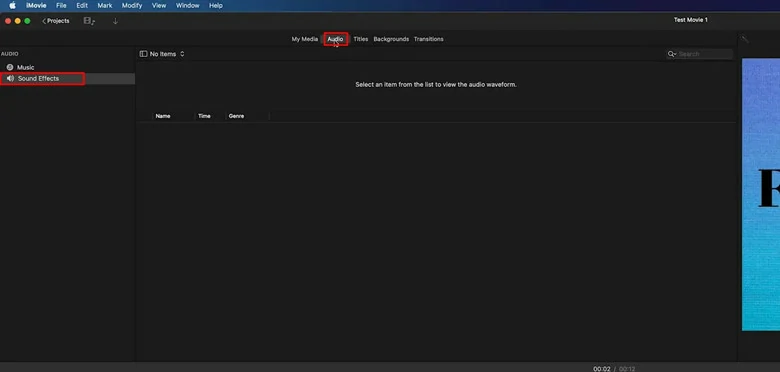
With your project open, go to the top of the window, click on "Audio," then select "Sound Effects" in the sidebar. If needed, click the "Media Browser" button to view your audio options.
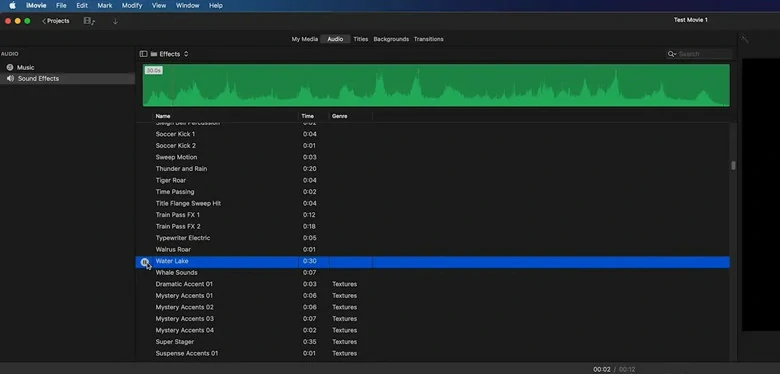
Open iMovie Audio Library
Step 3: Preview Sound Effects and Add to Timeline
Preview the sound effect by clicking on the Play button to listen before adding it to your project. Once you've selected favorite one, drag and drop the audio clip to line it up with on-screen action.
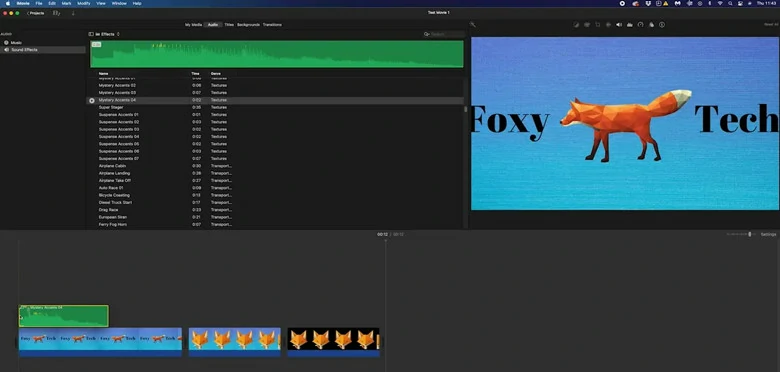
Preview Sound Effects and Add to Timeline
Step 4: Trim Your Sound Effects
Slide your sound effect on the timeline to trim it and place it anywhere you want to insert it. Adjust the duration and change the sound volume to match your needs.
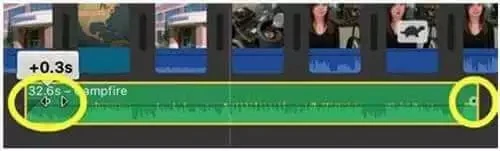
Preview Sound Effects and Add to Timeline
Part 2. How to Put Sound Effects on iMovie on iPhone & iPad
Incorporating sound effects to video on iPhone and iPad is easy and quick. With a few steps, you can enhance your project with the perfect audio for each scene. Here is how to add sound effects with iMovie on iPhone & iPad.
Step 1: Open iMovie and Import Your Media
In the iMovie app, tap the + icon to create a new project. Then, scroll through the timeline and position the playhead at the exact point where you want the sound effect to start.
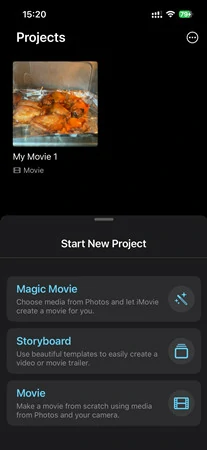
Open iMovie and Import Your Media
Step 2: Add Sound Effects to Your Project
For adding sound effects, tap the Plus icon at the left corner. Then click Audio > Sound Effects, then you'll see a wide range of sound effects, which you can listen to a sound effect before tapping to add it.
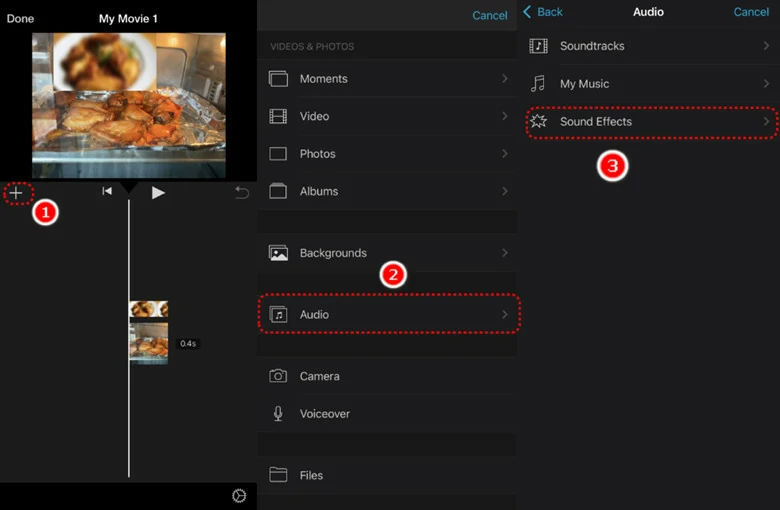
Preview Sound Effects and Add to Timeline
Step 3: Trim and Edit Your Sound
Trim your sound by dragging the slide and you can also use multiple sound effects and edit to make your video engaging.

Trim and Edit Your Sound on iPhone
While iMovie is a free and user-friendly tool for adding sound effects, its limitations can significantly impact your editing workflow in the following ways:
So, to give you a more pleasant sound effects editing experience with completely flexibility, an AI-powered solution called FlexClip is introduced to you in the following part. Let's move on.
Part 3. Try AI Solution to Add Sound Effects Easier
With FlexClip, adding sound effects to videos is faster and easier than ever. Explore a massive library of 74,000+ royalty-free music tracks and sound effects to instantly enhance your podcasts, vlogs, YouTube videos, and more. From immersive ambient sounds and bustling city traffic to dramatic cinematic effects, you can find the perfect audio to match any scene and elevate your content in just a few clicks.
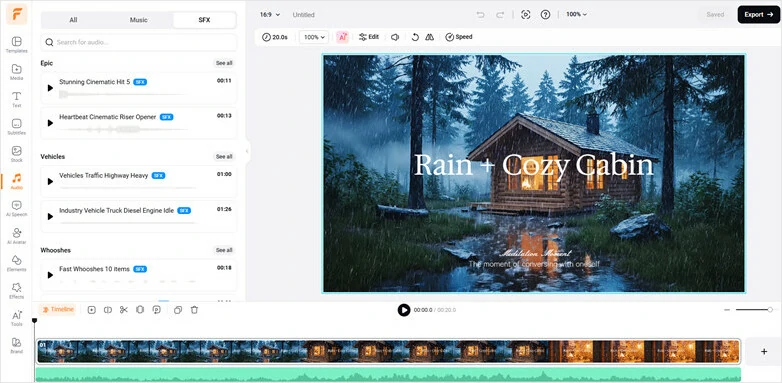
Enhance Your Video with FlexClip's Built-in Sound Effects Stock
Looking for complete creative freedom? With FlexClip's AI Sound Effects Generator, you can create custom sound effects from simple text prompts. Just describe the sound you want, and the AI will instantly generate a one-of-a-kind audio track tailored to your scene. From subtle background ambience to dramatic cinematic effects, producing the perfect sound has never been easier.
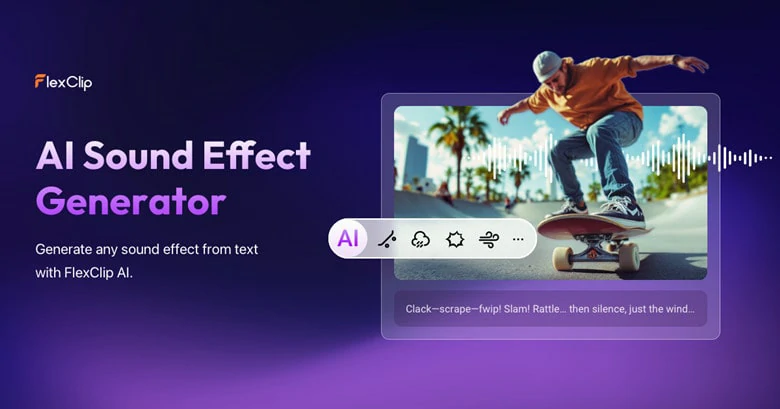
Add Sound Effects to Video with FlexClip's AI SFX Generator
What if adding sound effects was as easy as uploading a video? FlexClip's AI Video-to-SFX Generator automatically analyzes your footage, identifies on-screen actions, and creates realistic sound effects that perfectly match every scene. Forget tedious manual syncing—AI handles the hard work for you. Whether you're a beginner or a seasoned creator, you can produce immersive, professionally sound-designed videos in seconds.

Add Sound Effects to Video with FlexClip's AI Video-to-sfx Generator
1) FlexClip's AI Sound Effect Generator to Turn Text into Realistic Sound Effects
Bring your imagined sound effects into reality with FlexClip's AI sound effects generator. The sound effects generation is endless, from ambient sound effects like wind, transition movement effects like whoosh or animal sound effects like bird calls or other objects sound like phone ringing. Simply describe the SFX you need, and FlexClip's AI will generate it instantly. Here's how to transform text prompts into realistic sound effects with FlexClip:


Access FlexClip's AI Sound Effect Generator to Get Started
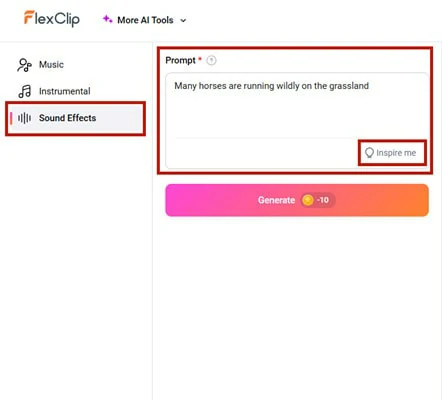
Enter Your Prompt for Sound Effects Generation
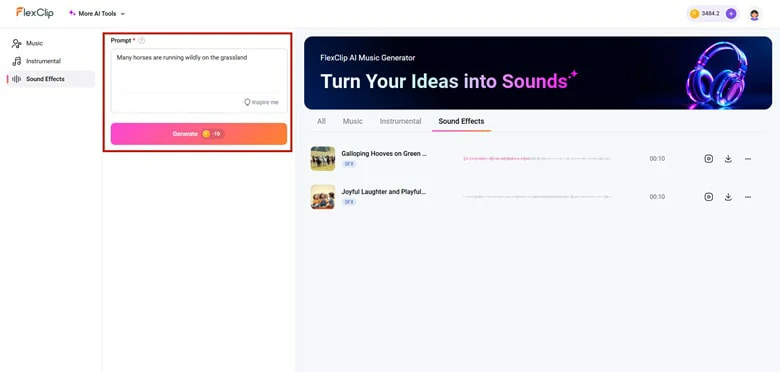
Download Generated Sound Effects to Your Computer
2) Video to AI Sound Effects Generator to Automatically Add SFX to Video
Finished editing your video but missing the perfect sound effects? Throw your video to FlexClip's video to sound effects generator and let this AI machine to add natural and realistic SFX that sound like it born to match your video content. No manual edits are required. Simply describe the content and watch the AI work its magic. Here is how to do it.
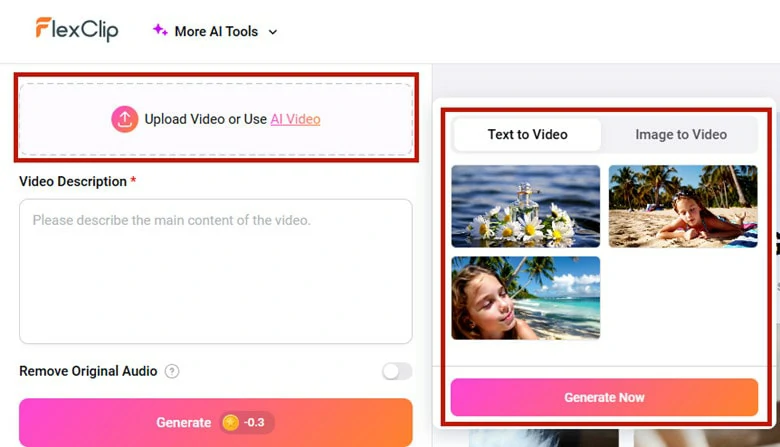
Open FlexClip's Video to AI SFX Generator and Upload Your Video
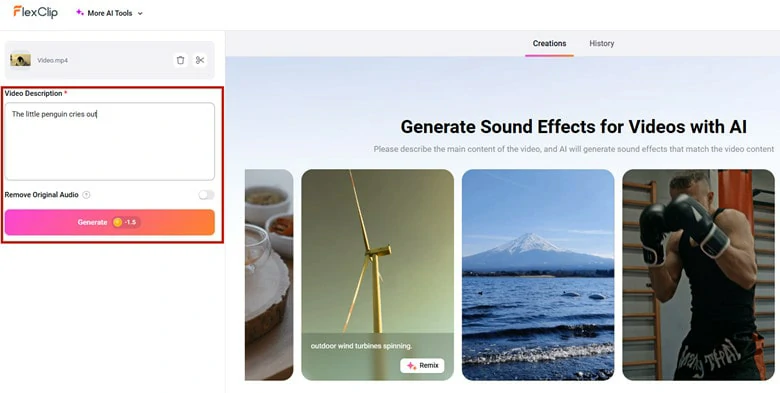
Describe the Main Content of Your Video with Simple Text Prompt
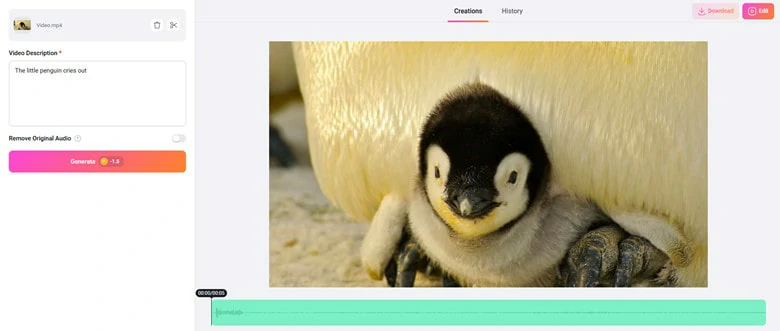
Download the SFX Added Video or Add More Personal Touches with FlexClip's Feature-rich Video Editor
3) Add Royalty-free SFX to Video with FlexClip
Need high-quality, royalty-free sound effects to instantly enhance your videos? FlexClip offers a massive library of 74,000+ music and SFX options, letting you find your perfect match with just one click. Thanks to its intuitive interface, both beginners and pros can add professional sound design in minutes. Here's how to add sound effects to your video with FlexClip:
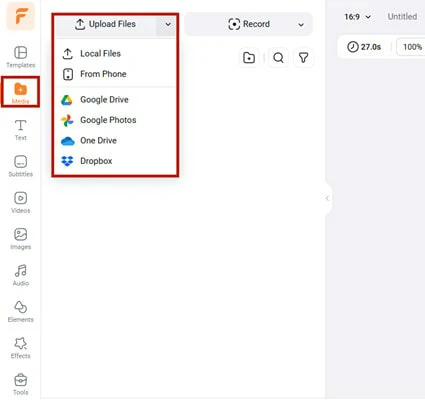
Open FlexClip's Video Editor and Upload Your Video
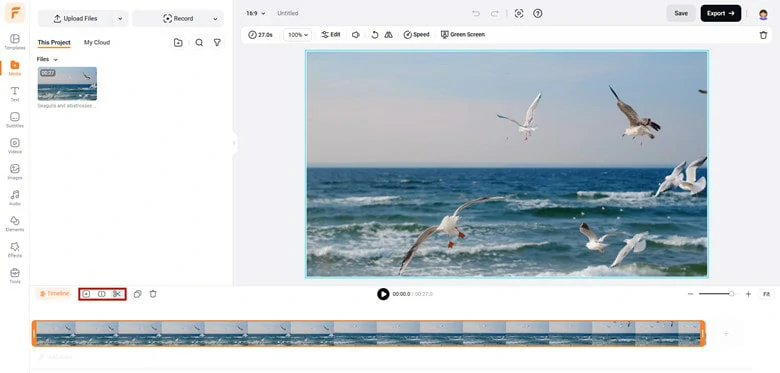
Add Video to Timeline and Refine the Raw Footage
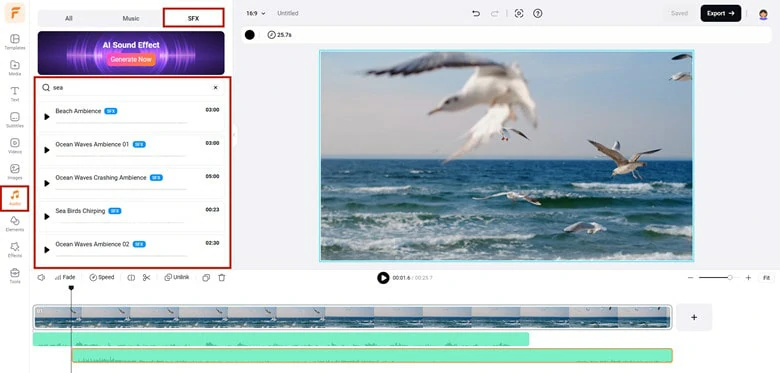
Search and Add Sound Effects to Your Video
The Before-and-after Video of Sound Effects Using FlexClip
In addition to flexible solutions for generating and adding sound effects to video, FlexClip can help you more in audio editing from your video project. You can use AI noise reducer to remove unwanted background noise, separate vocal/instrumental from audio file with AI vocal remover, reach border audience by translating your speech into 140+ localized languages, generate natural-sounding voiceover from text, create your own music with AI music generator, etc. Try FlexClip and explore endless possibility of your video and audio creation right now!
AI Audio Editing Features in FlexClip You Can't Miss
Bonus Tips: Three Website to Download Sound Effects for iMovie
Want to browse extensive sound effects library and download royalty-free tracks to enhance your vlog, tutorial or podcast video? Explore these top three websites for a vast collection of high-quality sound effects that can instantly enhance your videos and audio projects.
1) Pixabay
Pixabay includes a large library of royalty-free sound effects that can be used for both personal and commercial projects. Browse over 120,000 sound effects and easily get various audios in high-quality, such as typing, wind, glitch, notification and more.

Sound Effects Download Website for iMovie Users - Pixabay
2) Mixkit
Mixkit is a free gallery of music tracks, sound effects and video templates. Its intuitive and feature-guided interface makes it easy for you to find sound for your project.

Sound Effects Download Website for iMovie Users - Mixkit
3) ZapSplat
ZapSplat is a free sound effects library with over 150,000 sound effects to download for free. Sound tracks are high-quality, professionally recorded audio. All free sounds and music are safe to use for any non-commercial and commercial use.
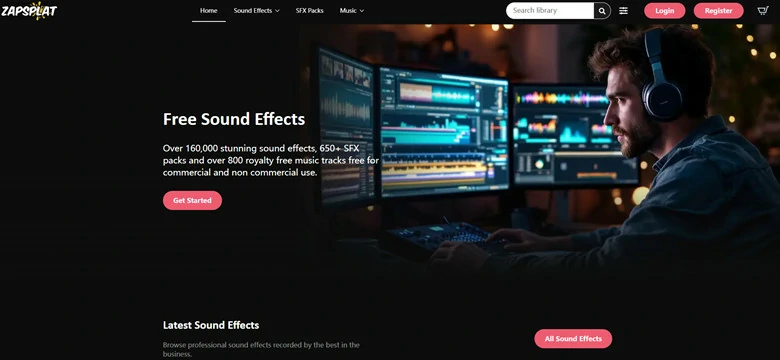
Sound Effects Download Website for iMovie Users - ZapSplat
The Bottom Line
Adding sound effects in iMovie is a great way to make your videos more immersive and engaging. With iMovie’s built-in sound effects library, you can easily enhance key moments and bring your scenes to life. If you're looking for a faster and more intelligent solution, FlexClip leverages AI to generate unique sound effects from text prompts or automatically match SFX to on-screen actions with smart scene detection. Choose the method that works best for you and start elevating your videos with the perfect sound effects today!




FlexClip AI Video Maker
Reach professional-quality videos faster with easy editing tools, templates, and smart AI.
Start Now for Free
Hot & Trending
-

Best Ways to Find Music in YouTube Videos
-

Instagram Story Video Quality Bad After Upload? Fix It!
-

How to Repost Video on TikTok & How to Remove TikTok Repost
-

Improve Video Quality Online: 3 AI Video Quality Enhancers You Can't Miss
-

4K Convert to HD 1080p without Watermark: Best 4k Video Converters
-

Best 8 Free Video Editors - No Download Required
-

Top 13 Birthday Video Makers with Music and Effects Free
-

How to Search Filters on TikTok & Use a Filter You See - TikTok Filter Guide