Looking to clip a portion of a YouTube video for sharing or saving? Whether you’re a content creator repurposing videos into short-form content or an editor compiling highlights from multiple clips, this guide walks you through how to clip YouTube videos using a variety of tools and methods. From YouTube’s built-in features to AI-powered third-party clip makers, we cover all the options to make the process fast, easy, and hassle-free.
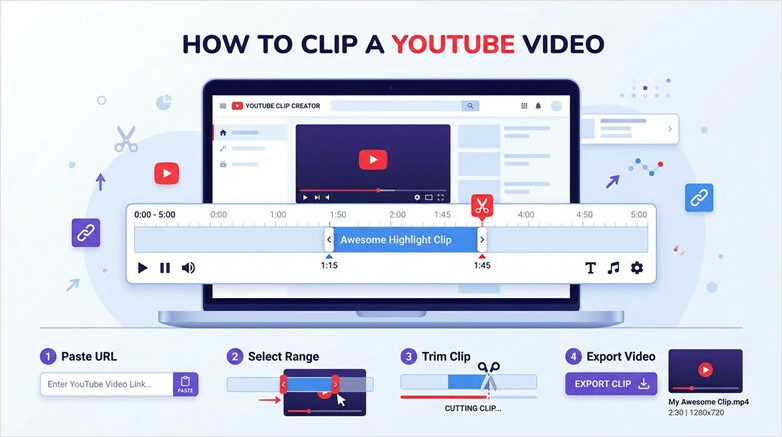
How to Clip a YouTube Video
Table of Contents:
Is a Built-in Feature to Clip Video on YouTube?
Yes. YouTube used to offers a built-in feature called YouTube Clips that allows viewers and content creators to create short, shareable snippets from any YouTube video, including your favorite YouTube clip. You can select 5-60 seconds and share it across social media platforms. It's a great way to share specific moments or share key points without affecting the original video.
However, you can no longer find the clip button because YouTube is removing the standard viewer "Clips" feature across the platform. Instead of letting users clip sections of a video or stream, YouTube is replacing this with a "Share at timestamp" feature. If your goal is simply to direct others to a specific moment in a video, you can use the Share at Timestamp feature by following the steps below:
1) Clip YouTube Video with Share at Timestamp
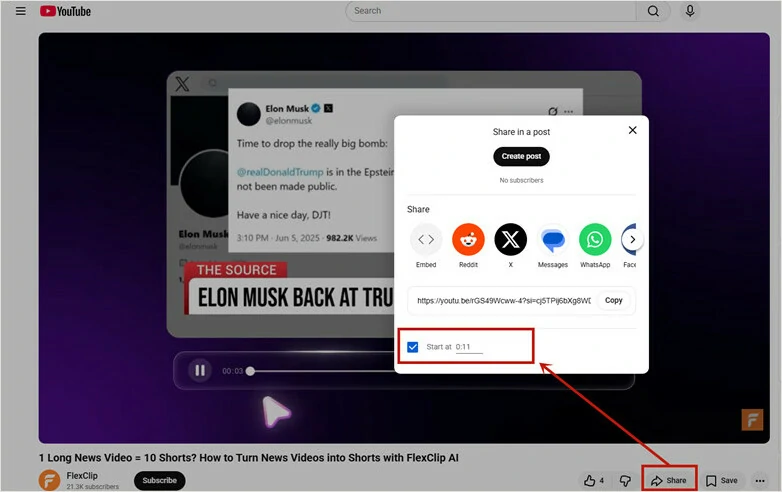
Share Clip with YouTube's Share at Timestamp Feature
2) Clip YouTube Videos Directly Using YouTube Studio
If you're a YouTube creator, YouTube Studio offers powerful built-in editing tools for refining your own videos. It's ideal for making quick edits to published content, such as trimming the beginning, middle, or end of a video. Best of all, you can apply these changes directly to your uploaded video without re-uploading it, saving both time and bandwidth.
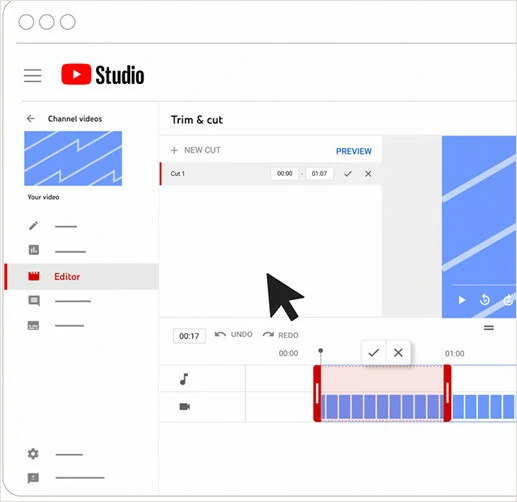
Clip YouTube Video with YouTube Studio
AI YouTube Clip Maker to Clip YouTube Videos with More Flexibility
Looking to clip a video from YouTube videos directly instead of sharing snippets? Try FlexClip, an AI YouTube clip maker, to automatically extract the most shareable portion with auto reframed and smooth lip-synced movement for viral clips.

Powered by AI technology, FlexClip can easily does the heavy lifting and turn your long YouTube videos into bite-size clips instantly. The AI-driven tool selects the most engaging, captivating pieces of your longer videos, ensuring that the new clips share your message succinctly and effectively with your audience. Say goodbye to clip a YouTube video by manually watching and editing hours of video! Now with FlexClip, you can create attention-grabbing clips from YouTube in seconds.
FlexClip's Long-to-Short Converter to Clip YouTube Videos with AI
Key Features of Clipping YouTube Video with FlexClip
How to Clip a YouTube Video Online with FlexClip's AI Clip Maker
Ready to experience a streamlined and easier way of clipping a YouTube video? Instantly turn your long YouTube video into social-ready clips using FlexClip with our step-by-step guide below:
Step 1: Upload Your YouTube Video to FlexClip
Access FlexClip's AI long-to-short converter and paste the YouTube video link or directly browse the local files to upload the YouTube media you want to clip.
Note: If the YouTube video isn't yours, be sure to get the owner's permission before processing it.
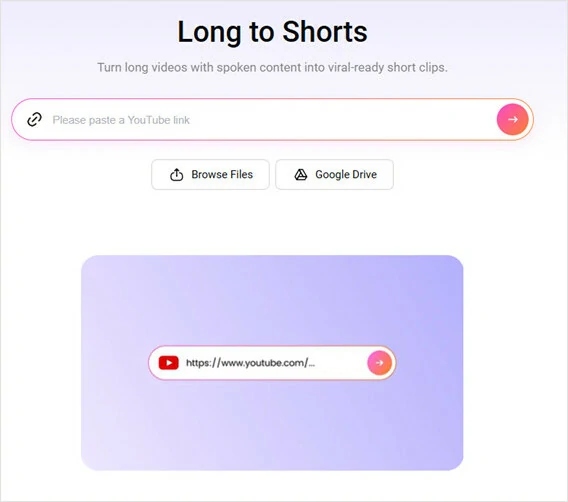
Upload Your YouTube Video to FlexClip's AI YouTube Clip Maker
Step 2: Adjust Settings for Your Video
Once loaded, FlexClip will automatically take you to the Settings page, where you can adjust the settings and guide AI to clip the YouTube video as the way you wish. Select the text language, clip type, duration, ratio, subtitle and more as needed.
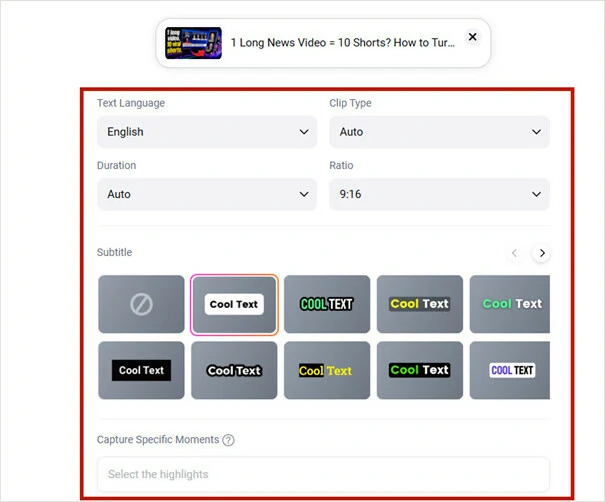
Adjust Settings for Your Video
Step 3: Clip Your YouTube Video in One Click
Tap Generate button to start the clipping process. FlexClip will instantly transform your YouTube video into bite-size clips in the ratio you selected by analyzing the video, detecting the most shareable moments and reframing every second to ensure the main speaker stay centered throughout.
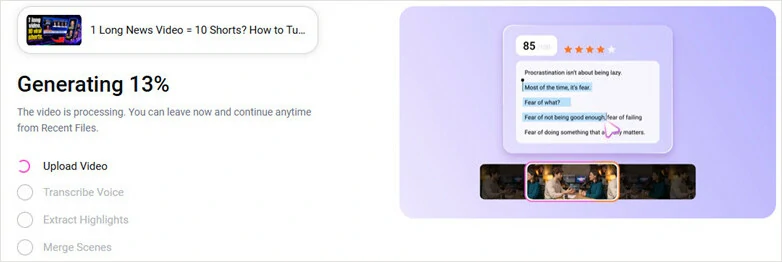
Clip Your YouTube Video in One Click
Step 4: Preview and Download New Clips
Once it's finished, you can preview all the clips in new aspect ratio. Every clip comes with a virality score for you to predict its performance. Now select your most satisfying one and click the Download button to save the new video in your device or directly share it across social media platforms.
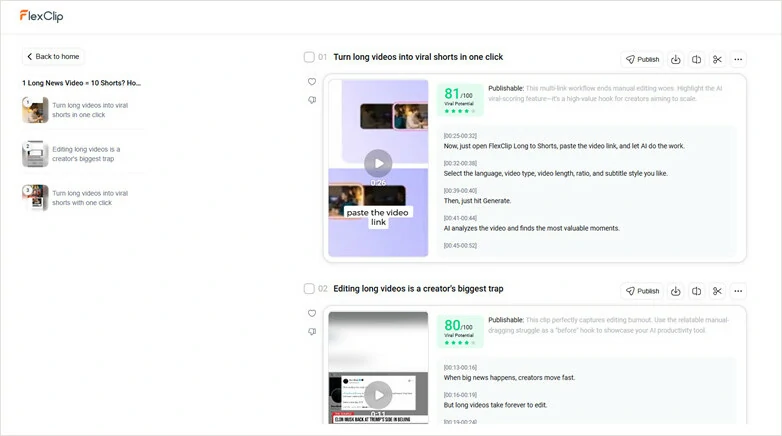
Preview and Download the New Clip
Want to fine-tune your clip before sharing it? No problem! Simply click the Open in Editor button to launch FlexClip’s built-in video editor. From there, you can personalize your video with powerful editing tools—add your logo, enhance scenes with sound effects, apply trending background music, insert eye-catching stickers, and much more. With FlexClip’s versatile editing features, you can easily transform a great clip into a truly unique creation.
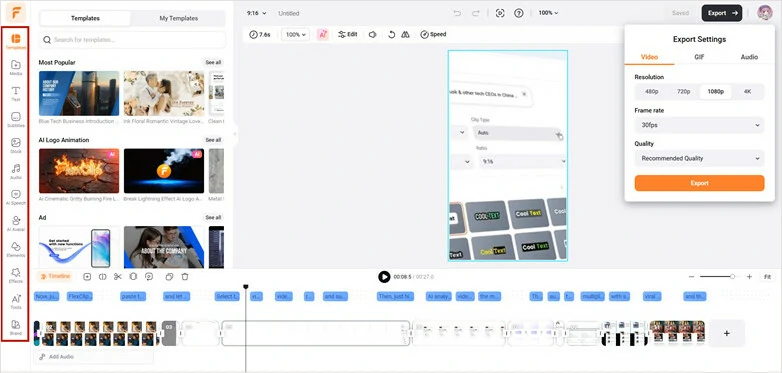
Finetune Your YouTube Clip with FlexClip's Video Editor
FAQs About Clipping YouTube Videos
1. What is a YouTube clip?
A YouTube clip is a segment taken from a longer YouTube video. They're usually used to highlight key moments, create social media content, share memorable scenes, or repurpose content for different platforms.
2. Why I can't find Clip button on YouTube?
You can no longer find the clip button because YouTube is removing the standard viewer "Clips" feature across the platform. Instead of letting users clip sections of a video or stream, YouTube is replacing this with a "Share at timestamp" feature.
3. Can I add subtitles to a clipped YouTube video?
Yes. FlexClip's AI YouTube clip maker includes automatic subtitle generation, allowing you to add captions and improve accessibility and engagement.
4. How do I clip multiple segments from a YouTube video?
Our AI YouTube clip maker can automatically analyze the video and detect a dozens of engaging moments, which you can combine multiple clips into a single video or directly share it individually, making it easy to create highlight reels, tutorials, or compilations.
The Bottom Line
That's all for how to clip a YouTube video using both its built-in ways and third-party AI YouTube clip maker. If you don't just want to share snippets and want to repurpose video for social media platforms, try FlexClip to make the clipping process easier and quickly. Now it's your turn!




FlexClip AI Video Maker
Reach professional-quality videos faster with easy editing tools, templates, and smart AI.
Start Now for Free
Hot & Trending
-

Best Ways to Find Music in YouTube Videos
-

Instagram Story Video Quality Bad After Upload? Fix It!
-

How to Repost Video on TikTok & How to Remove TikTok Repost
-

Improve Video Quality Online: 3 AI Video Quality Enhancers You Can't Miss
-

4K Convert to HD 1080p without Watermark: Best 4k Video Converters
-

Best 8 Free Video Editors - No Download Required
-

Top 13 Birthday Video Makers with Music and Effects Free
-

How to Search Filters on TikTok & Use a Filter You See - TikTok Filter Guide